# 'Stamps' area
You can use stamps on documents in ELO just as you would on paper documents. In the Stamps area, you can create new stamps, or edit and delete existing stamps.
The stamps are available to users in the viewer pane in the ELO Java Client.
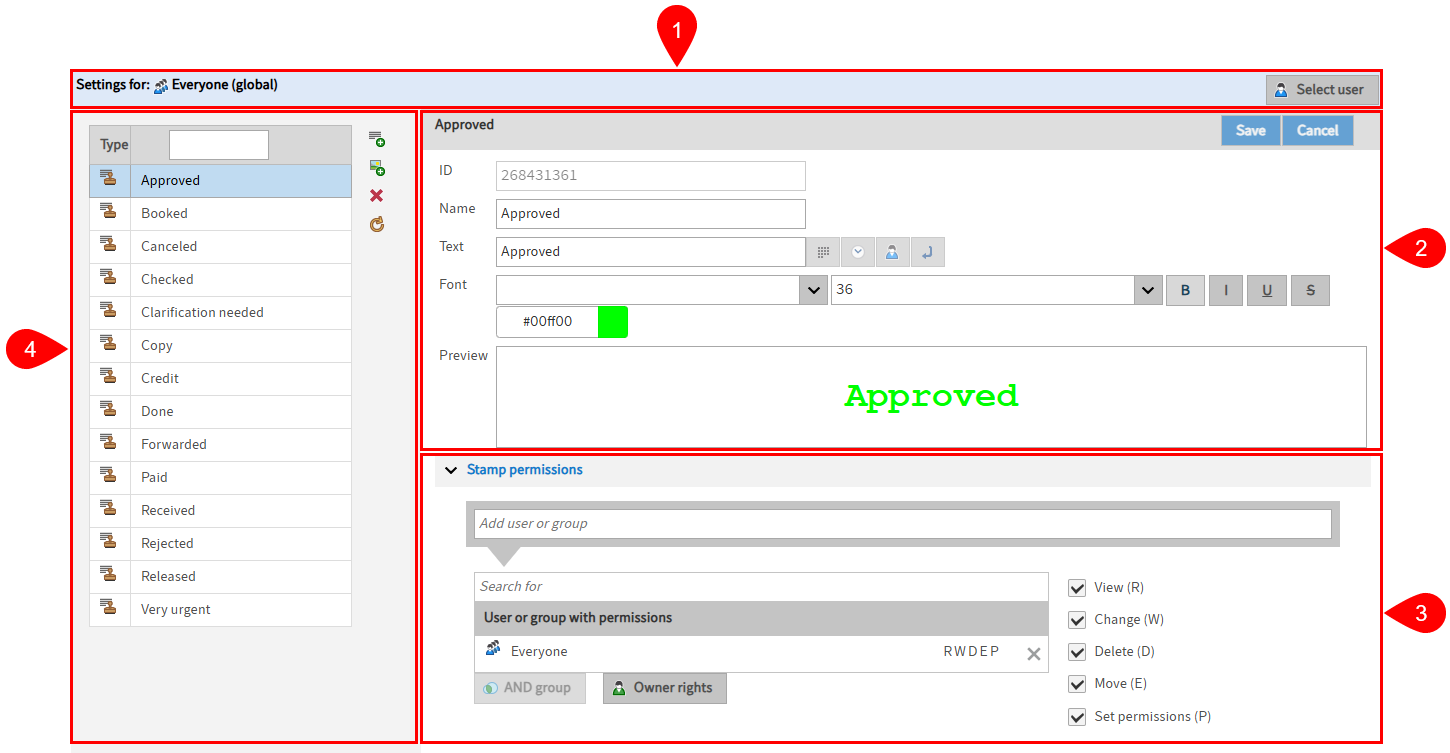
The Stamps area contains the following sections:
1 Settings for: In Settings for, you can see who you are editing the stamp settings for. You can find more information under Settings for.
2 Stamp settings: Under Stamp settings, you see the settings of the selected stamp. The stamp settings are edited in these fields. You can find more information in the following chapters:
3 Stamp permissions: In the Stamp permissions area, you can edit the permissions settings that will apply if the stamp is used. You can find more information under Stamp permissions.
4 List of stamps: Under List of stamps, you see all the stamps available to the selected user/option group, as well as the buttons for creating and deleting stamps. You can find more information under List of stamps.
# Settings for
Select user: Select Select user to open the Select user or group dialog box. In the Select user or group dialog box, you can select the user or option group that you want to edit the stamp settings for.
Information
Stamps created in the client are only available to the respective user.
To edit the stamp settings for all users (global), select the Everyone group in the ELO Administration Console.
Please note
To be able to edit the stamp settings in the ELO Administration Console, you need the Edit master data user right.
To be able to edit the stamp settings for other users or groups, you need the Edit master data user right in addition to the Edit user data user right and must be entered in the Administrator field for the corresponding user or group in the user and group administration.
You will find more information on these topics in the following documentation:
# Stamp permissions
Please note
The configured permissions only apply to the applied stamp in the ELO system. Permissions do not control which users may use the respective stamp.
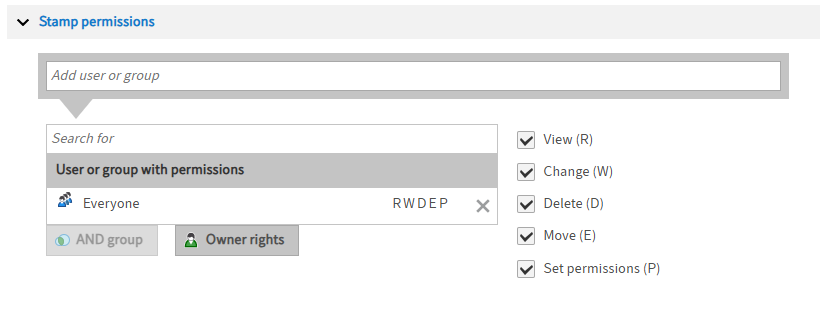
Add user or group: In the Add user or group field, you can add users or groups to the list User or group with permissions.
Search for: You can search the list User or group with permissions using the Search for field.
User or group with permissions: In the list User or group with permissions, you can see the permissions that users and groups have when using the stamp.
The following permissions are available:
- View (R): The user/group can see the applied stamp.
- Change (W): The user/group can change the size of the stamp.
- Delete (D): The user/group can delete the stamp.
- Move (E): The user/group can move the stamp around within the document.
- Set permissions (P): The user/group can change the permissions on the stamp. The user/group also requires the user right Edit permissions.
AND group: Select the AND group button to connect two or more groups. In this case, the assigned permissions only apply to users who are members of all groups connected as AND groups.
Owner rights: Select the Owner rights button to grant permissions to the user who created the stamp.
Members of the group: Under Members of the group, you can see all users who are a member of the selected group.
# List of stamps
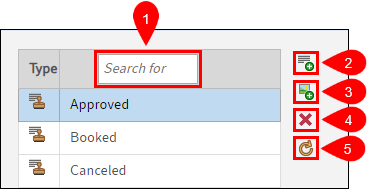
The following actions are possible:
1 Search for: You can search the list using the Search for field.
2 Add a text stamp (green plus icon combined with text icon): Select Add a text stamp to create a new text stamp. You can find more information in the chapter Add a text stamp.
3 Add an image stamp (green plus icon combined with image icon): Select Add an image stamp to create a new image stamp. You can find more information in the chapter Add an image stamp.
4 Delete (red X icon): Select the Delete button to delete the selected stamp.
5 Reload data from server (yellow circle arrow icon): Select the Reload data from server button to reload the List of stamps area.