# Operation
# Site overview page
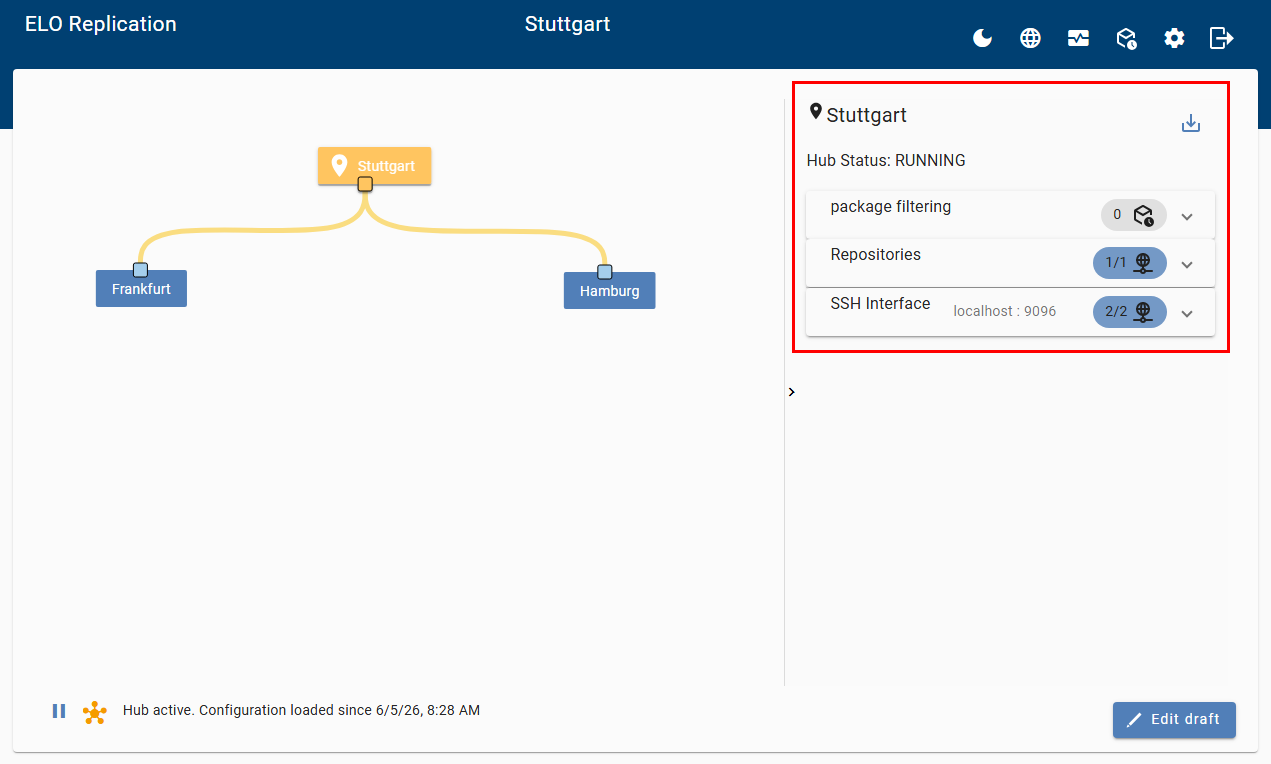
On the overview page for a site in the right area of the program, you will see information on the hub status, package filtering, the repositories, and the SSH interfaces.
# Package filtering
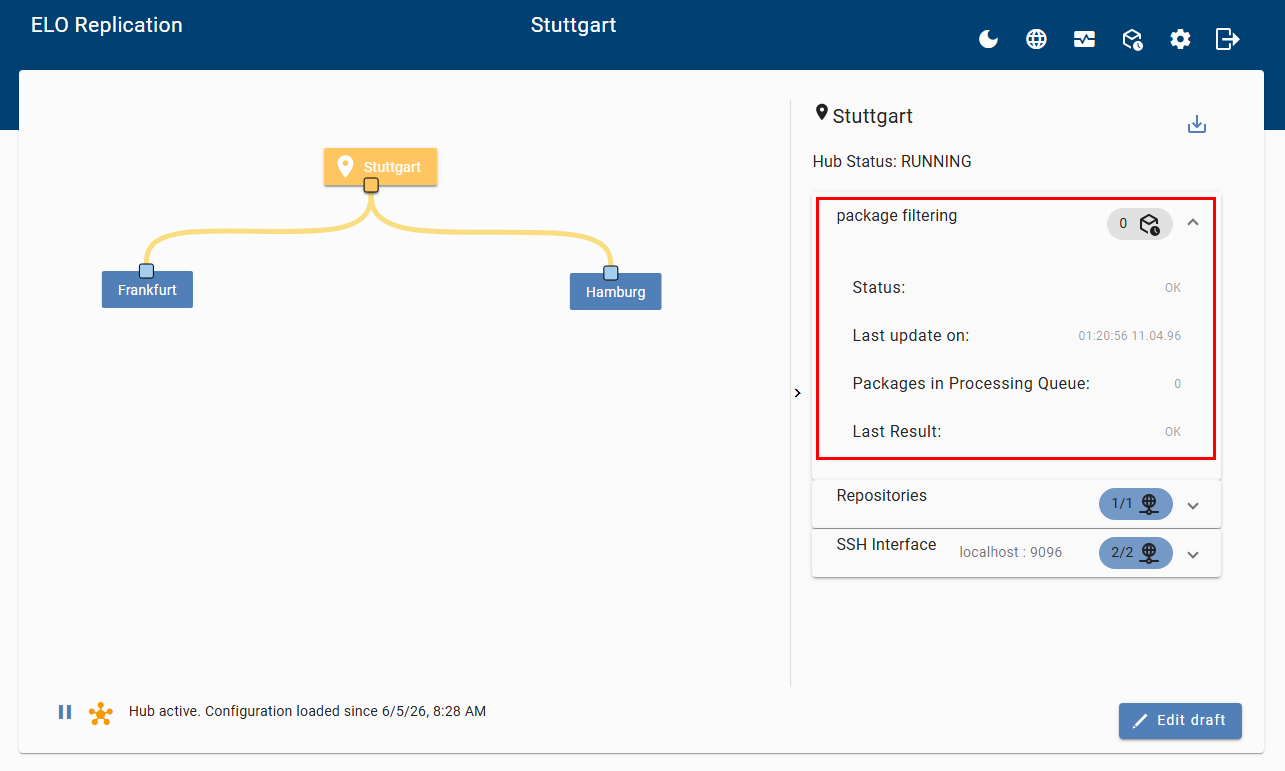
Package filtering analyzes incoming replication packages, extracts relevant elements, and uses this to create specific packages for forwarding data to the next destinations. You will find information on the processing status of replication packages in this area.
# Repositories
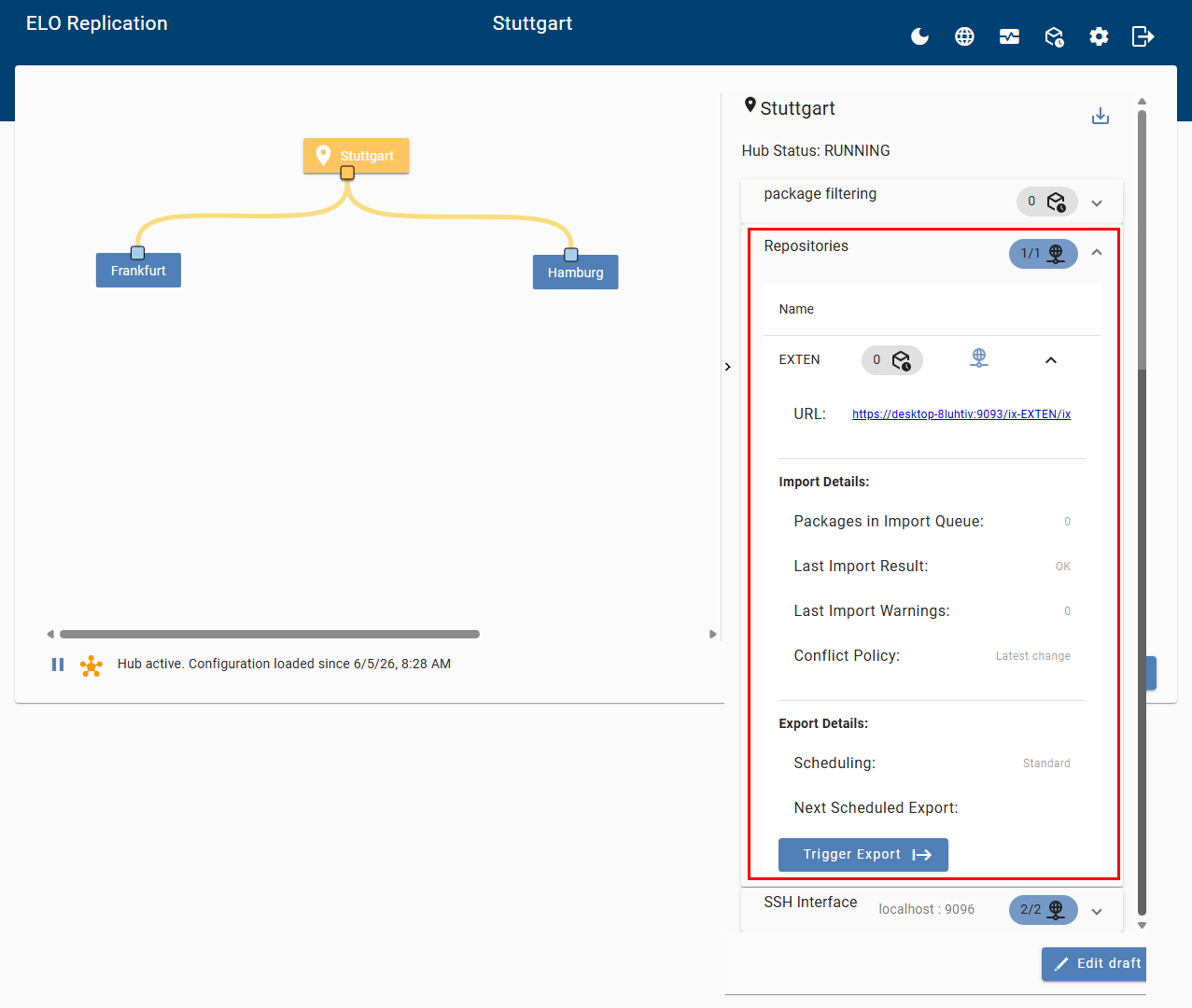
This area provides information on the availability of the repository for this local site. You will find details on the import and export of data packages and can trigger a manual export of the data.
# SSH interfaces
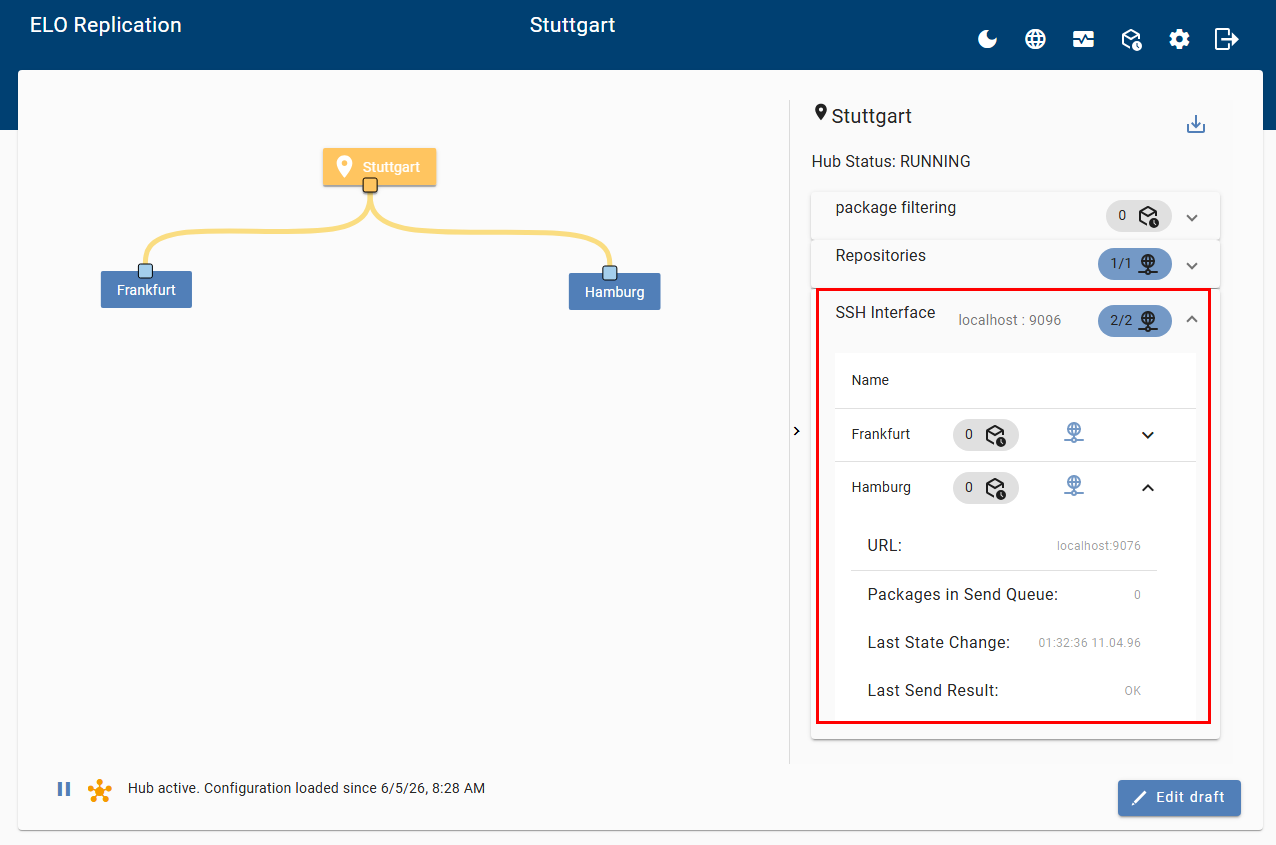
You will find information on the SSH interfaces of the other sites in this area. It shows whether the sites can currently be reached as well as the status of the current replication package transfers at these sites.
# Pause transmission
You can pause transmission during a replication process. This temporarily disables the Schedule. During this time, you can perform actions such as maintenance work on the ELO system without having to change the schedule configuration in ELO Replication.
Method
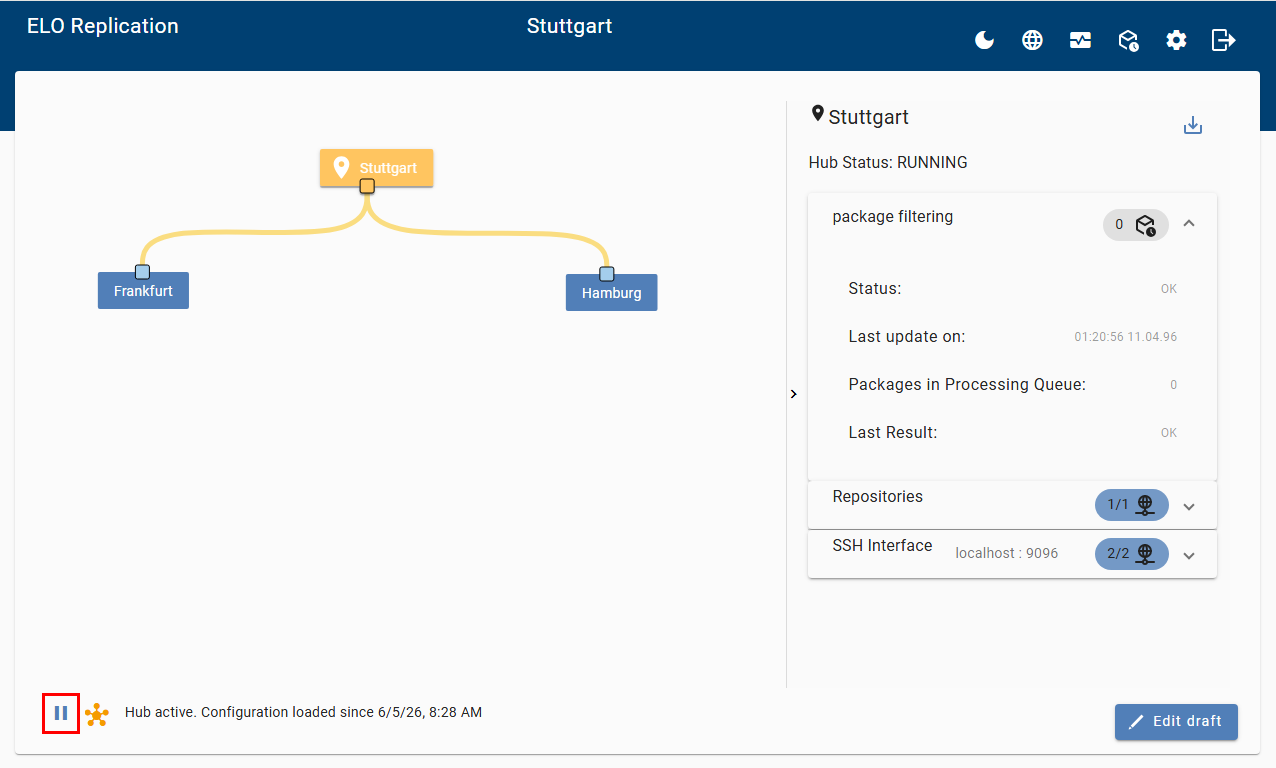
Select the Pause export button. This pauses the export of data from the repository.
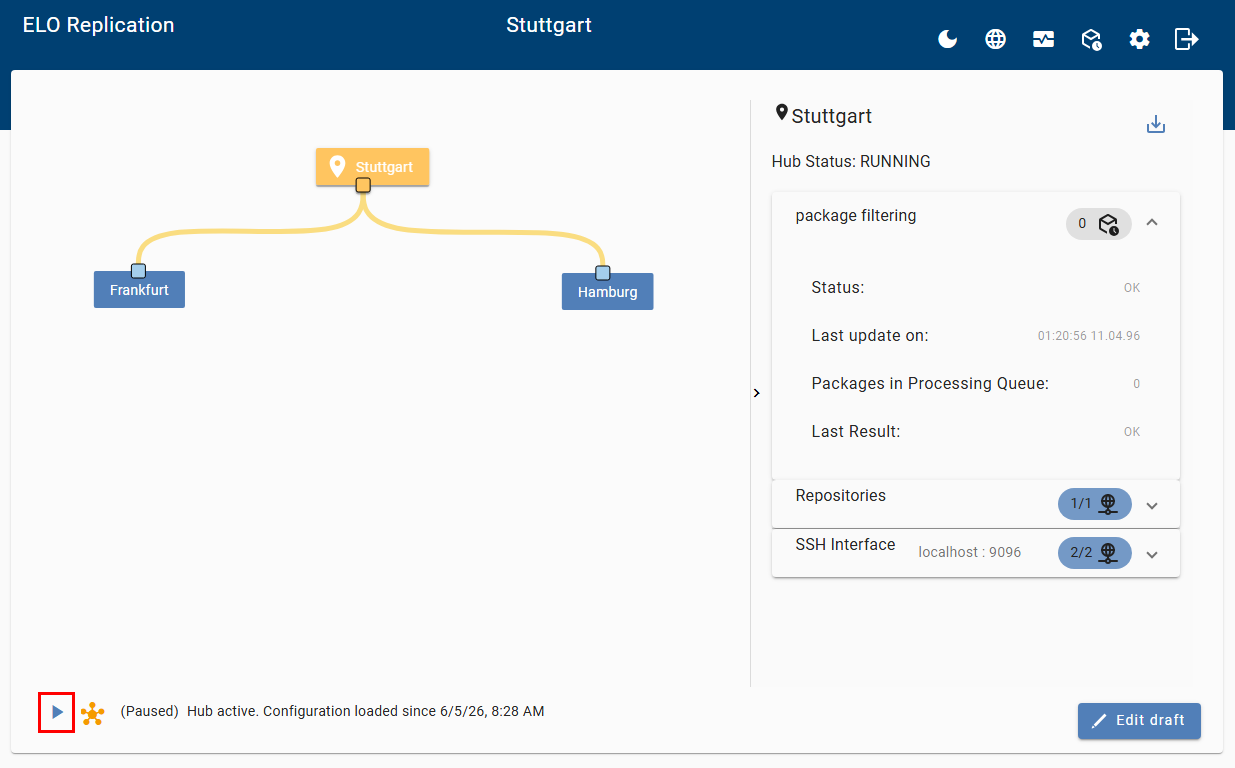
Select the Continue export button.
Result
The schedule is enabled again and the export of data is resumed.
# Edit configuration
You can edit the configuration of a published replication. During editing, the replication remains active. To apply your changes to the published replication, select Publish in draft mode.
Information
If you publish a new draft, the changes are automatically applied to all sites. You do not have to update the configuration manually at the different sites.
If you add a new site, you will have to upload the configuration file at the new site and publish the replication there. You can find more information in the section Create/insert a configuration for other sites.
Method
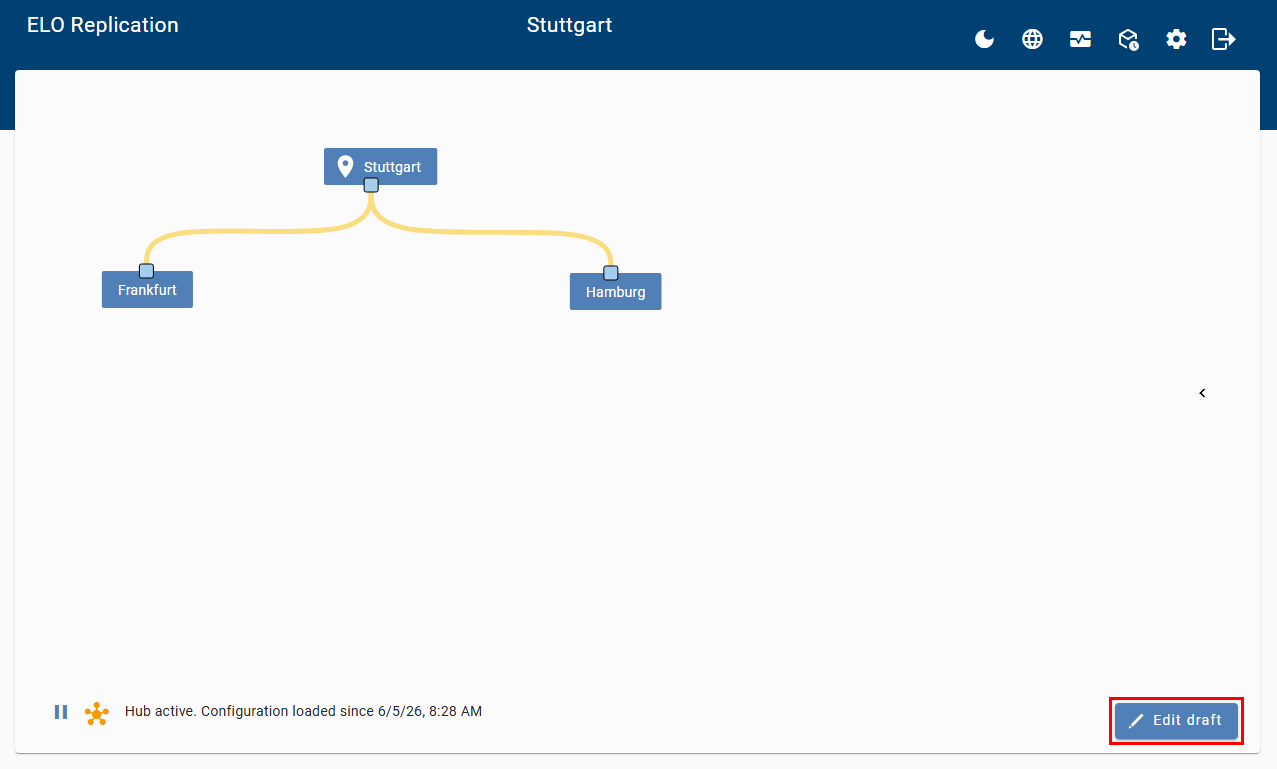
On the overview page, select Edit draft.
Draft mode opens.
For more detailed information on the configuration settings, refer to the chapters Draft mode, Location settings, and Schedule.
Make the desired changes. Your changes are saved automatically as soon as you leave an input field.
To end editing, you have the following options:
- Publish changes: To apply your changes to the published replication, select Publish.
- Discard changes: To delete your changes, select Discard. The published replication is not changed.
- Save draft: If you don't want to publish the new draft yet or want to continue editing it at a later point in time, exit draft mode by clicking the back arrow or log off. Your draft is saved automatically. The published replication is not changed. To continue editing, select Edit draft on the overview page.
Result
You have edited the replication.
Outlook
If you've published a new draft, the changes are automatically transferred to all sites. You can check the transfer status in the transfer overview.
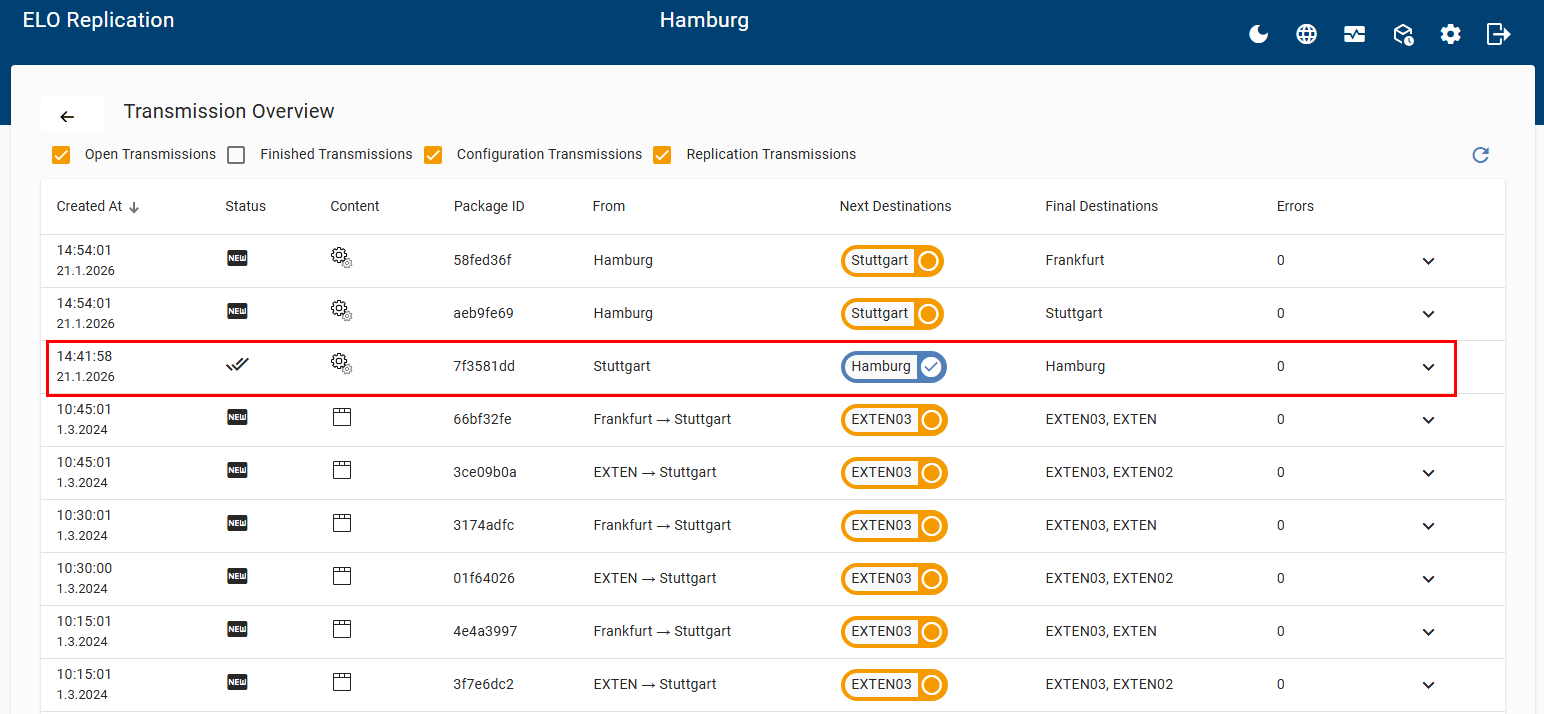
On the ribbon, select Transfer overview. You will recognize that a new draft is being transferred based on the gear icon in the Content column. Successful transfer is indicated by two check marks in the Status column. For more information, refer to the chapter Monitoring.