# Introduction
Everyone who uses ELO needs a corresponding ELO account.
Groups can be used to manage permissions and basic settings in ELO. Groups are also used in workflows and for substitution rules.
You can create, configure, and manage users and groups in the user and group administration. You will find it in the ELO Administration Console under System settings > User and group administration.
Information
For ease of use, alternatively you can control the user and group administration via the keyboard.
For more information on keyboard control, refer to Configuration and administration > ELO Administration Console > Basics > Simple operation.
# 'Users and groups' overview
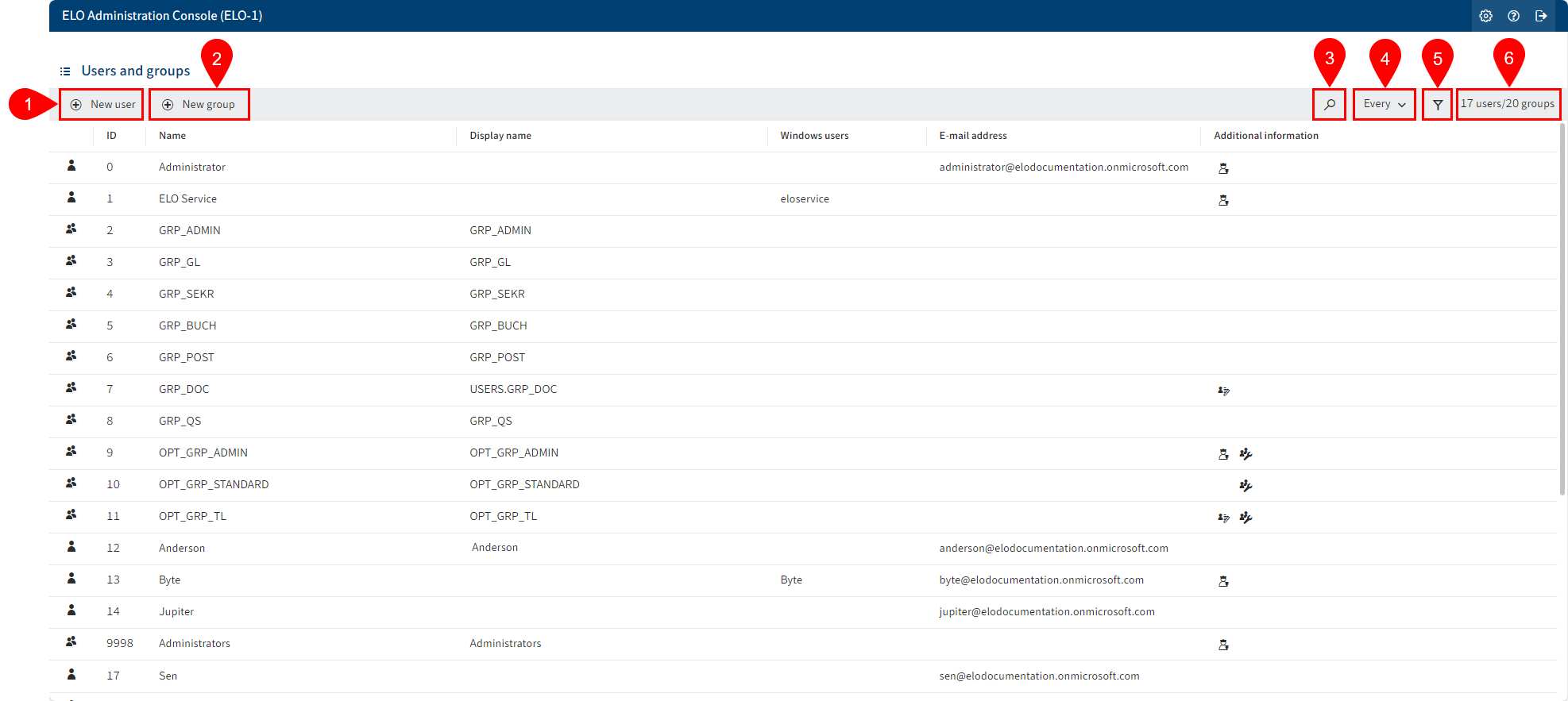
The user and group administration offers the following actions:
3 Perform search
4 List selection: All, users, groups
5 Define filter
6 Number of existing users and groups
Information
You can sort the list of existing users and groups in ascending or descending order according to IDs or names by selecting ID or Name in the first line of the table.
# 'User' detailed view
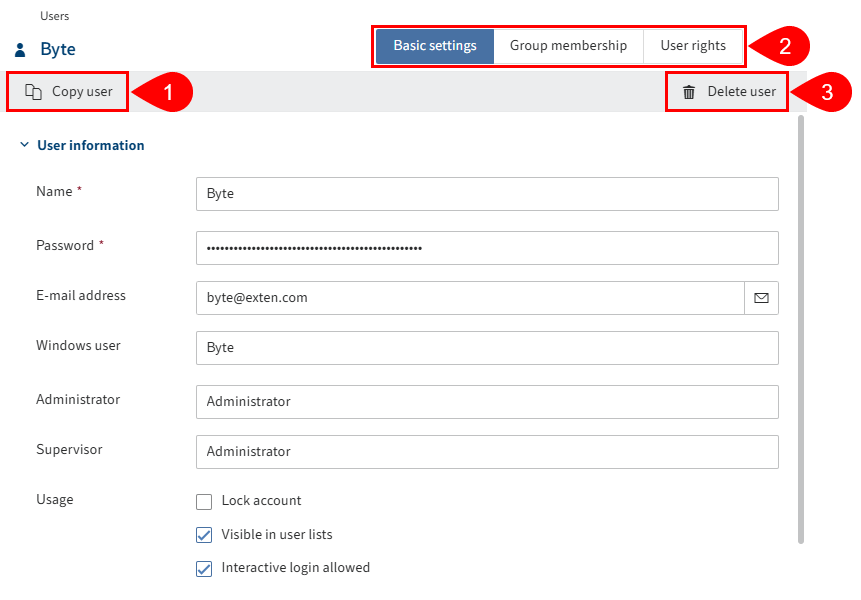
The User detailed view offers the following actions:
1 Copy user: All configurations are applied, with the exception of the Name, E-mail address, Password, and Windows user fields.
2 Perform configuration: Via the Basic settings, Group membership, and User rights tabs
# 'Group' detailed view
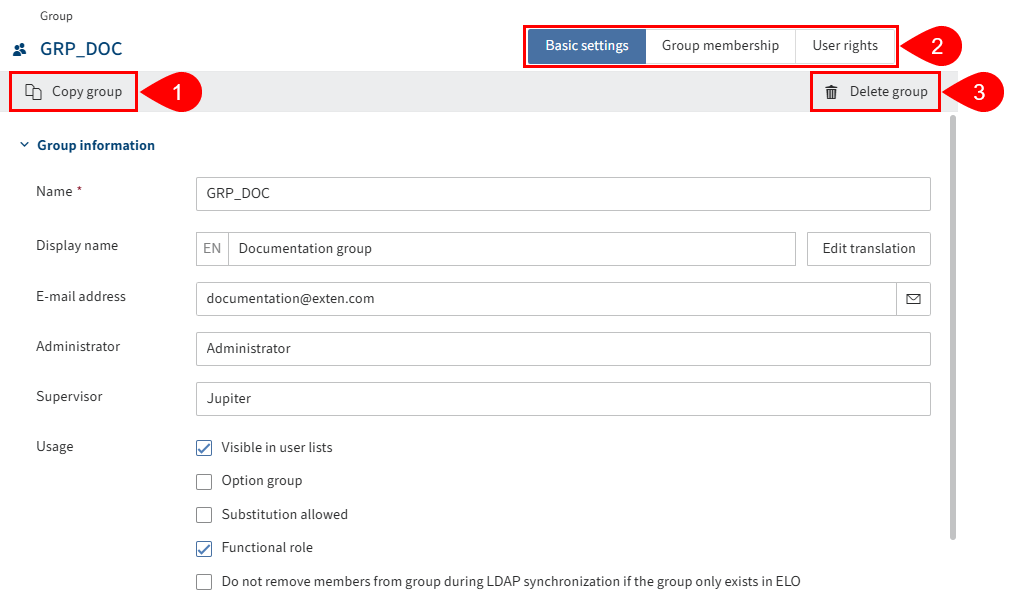
The Group detailed view offers the following actions:
1 Copy group: All configurations are applied, with the exception of the Name and E-mail address field as well as the members.
2 Perform configuration: Via the Basic settings, Group membership, and User rights tabs